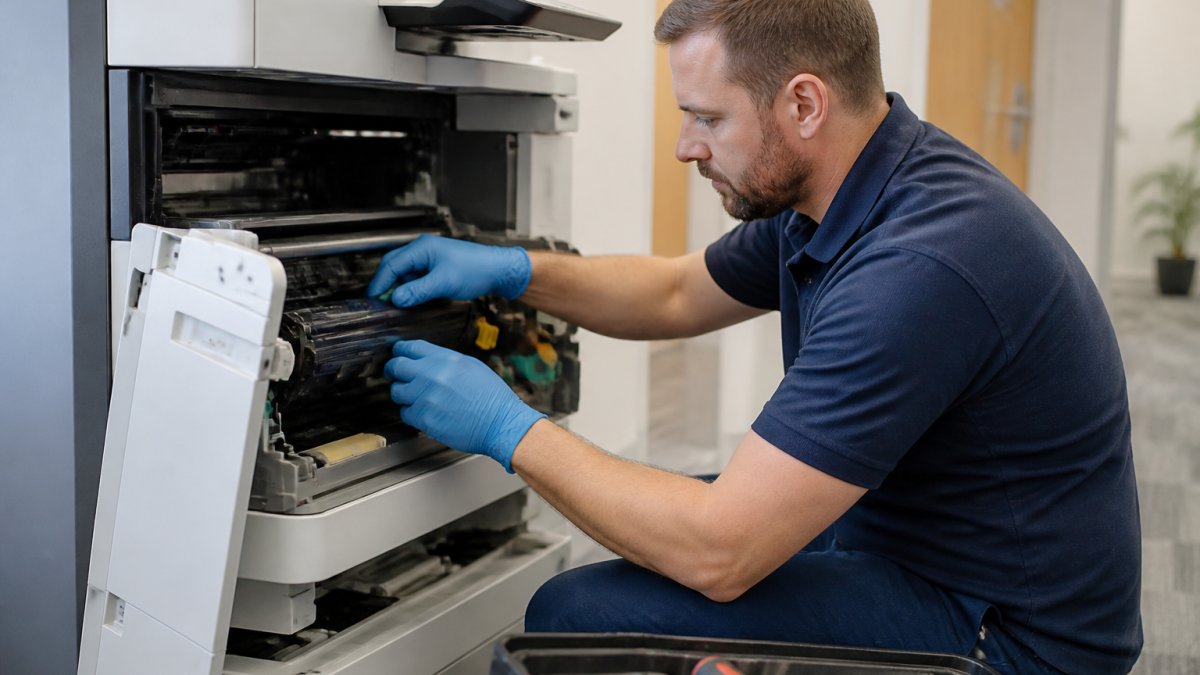
Table of Contents
- Why Printer Downtime Costs Your Organisation More Than You Think
- Printer Preventive Maintenance Checklist: What to Do Before Problems Start
- Office Printer Maintenance Schedule: Establishing a Routine That Works
- Common Printer Problems and Solutions: Quick Fixes to Restore Service
- Printer Fleet Management: Coordinating Multiple Devices Across Your Organisation
- Reducing Downtime Through Staff Training and Responsibility
- Partnering With a Managed Print Service Provider for Ongoing Support
- Conclusion
- Frequently Asked Questions
Last Updated: October 5, 2026
Why Printer Downtime Costs Your Organisation More Than You Think
Printer downtime disrupts workflows and drains resources faster than most organisations realise. Understanding how to reduce printer maintenance downtime is essential for operational efficiency. When a printer fails, staff can’t print documents, send faxes, or scan files. Work stalls.
The real cost goes beyond the obvious. Emergency repairs cost more than planned maintenance. Staff waste time troubleshooting instead of working. Critical documents get delayed. In larger organisations with multiple devices, a single failure can affect dozens of people at once.
At Crispin Associates, we’ve helped organisations across the public sector, education, and corporate environments understand that reducing printer maintenance downtime isn’t just about fixing problems when they happen. It’s about preventing them in the first place.
The good news: most printer downtime is preventable. Regular maintenance catches small issues before they become big ones. A clear schedule ensures nothing gets forgotten. Staff know what to do and when to do it.
Printer Preventive Maintenance Checklist: What to Do Before Problems Start
Preventive maintenance stops problems before they start. It’s far cheaper and easier than dealing with a broken printer. The key is consistency. Small tasks done regularly prevent expensive failures later.
Think of it like servicing a car. Regular oil changes keep the engine running. Skipping them leads to breakdowns. Printers work the same way.
Daily and Weekly Tasks
Daily checks take minutes but prevent major headaches. Check the paper tray each morning. Look for jams or debris. Empty the output tray so paper doesn’t pile up and cause feed problems. If your printer shows warning lights or error messages, note them. Don’t ignore them.
Weekly, run a cleaning cycle if your printer offers one. Many devices have a built-in maintenance mode. Check the user manual or the printer’s settings menu. Cleaning cycles remove dust and toner residue that builds up inside the device.
Key daily and weekly actions:
- Check paper levels and quality
- Clear the output tray
- Look for visible jams or debris
- Empty waste toner containers
- Note any error messages
- Run cleaning cycles if available
Monthly and Quarterly Checks
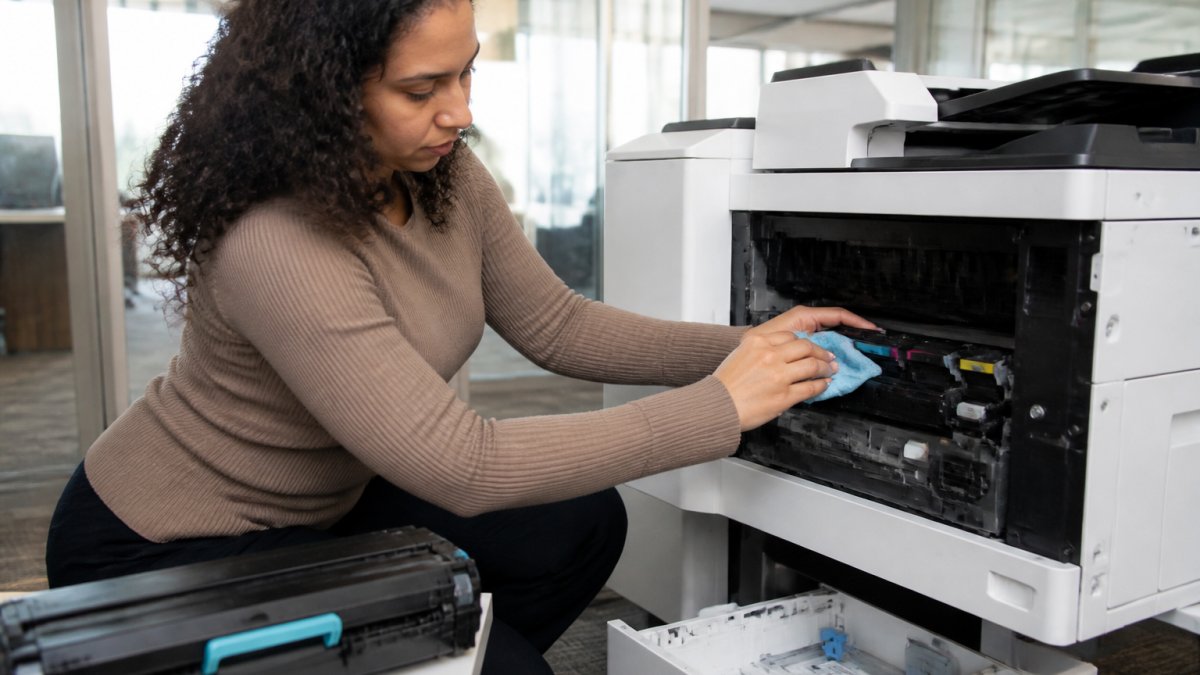
Monthly maintenance goes deeper. Inspect the paper feed rollers. They can wear out and cause jams. Look for dust or toner buildup. Use a soft, dry cloth to gently clean visible surfaces. Never use water or harsh chemicals.
Check all cables and connections. Loose cables cause network problems and communication errors. Make sure everything is plugged in securely.
Quarterly, review your usage reports if your printer tracks them. Most modern printers log how many pages they’ve printed. If numbers seem high, you might need to adjust habits or consider additional devices.
Monthly and quarterly tasks:
- Inspect paper feed rollers for wear
- Clean dust from vents and surfaces
- Check all cable connections
- Review usage and error logs
- Test network connectivity
- Verify toner and supply levels
Office Printer Maintenance Schedule: Establishing a Routine That Works
An office printer maintenance schedule works only if it’s simple enough to follow. Complicated schedules get ignored. Clear, realistic routines become habits.
Start by assigning responsibility. One person or a small team should own printer care. They don’t need to be technical experts. They need to be reliable and know who to call if something goes wrong.
Write down your schedule and post it near the printer. Include what to check, how often, and who’s responsible. Make it visible so everyone knows the routine.
Your schedule might look like this:
| Task | Frequency | Owner | Notes |
|---|---|---|---|
| Check paper and clear jams | Daily | Office staff | Takes 2 minutes |
| Run cleaning cycle | Weekly | Assigned person | Use printer menu |
| Inspect rollers and cables | Monthly | Assigned person | Look for wear or dust |
| Review error logs | Quarterly | IT or office manager | Spot trends early |
| Deep clean (if needed) | Annually | Service provider | Professional maintenance |
The schedule should fit your organisation’s size and printer volume. A small office with one printer needs less frequent checks than a large organisation with ten devices.
Common Printer Problems and Solutions: Quick Fixes to Restore Service
Most printer issues have simple fixes. You don’t need a technician for every problem. Knowing what to do when something goes wrong keeps downtime short.
Paper Jams and Feed Issues
Paper jams are the most common printer complaint. They’re usually easy to fix yourself.
First, turn off the printer. Open all access panels. Look inside carefully. You’ll likely see torn paper or a piece stuck in the feed mechanism. Gently remove it. Don’t force anything or pull at angles. Torn paper left inside causes repeat jams.
Check the paper quality. Low-grade, damp, or curled paper causes jams. Use standard office paper stored in a dry place. Keep it flat and organised in the tray.
Feed roller issues cause repeated jams even with good paper. If jams keep happening, the rollers may need cleaning or replacement. This is when you call a service provider.
Quick jam fixes:
- Turn off the printer first
- Remove visible paper or debris gently
- Check paper quality and storage
- Close all panels and restart
- If jams repeat, contact support
Print Quality Degradation
Faded prints or streaky output usually means toner is low. Check the toner level. Many printers show this on a display screen or through a software menu on your computer.
Dirty mirrors inside the printer also cause poor quality. Dust blocks the laser beam. Professional cleaning fixes this, but it’s not a quick fix.
Sometimes poor quality comes from wrong settings. Check that you’re using the right paper type in your print settings. Glossy paper needs different settings than plain paper.
Quality issues and fixes:
- Low toner causes faded prints
- Dirty optics cause streaks
- Wrong print settings affect output
- Use the correct paper type
- Replace toner before it runs out
Network and Connectivity Problems
Printers need a stable network connection. If staff can’t find the printer or print jobs hang, it’s often a network issue.
Check that the printer is connected to your network. Look at the printer’s display or settings menu. It should show an IP address. If it shows “No Network” or an error, restart the printer. Wait a minute and check again.
Restart your network router too. Unplug it for 30 seconds, then plug it back in. This fixes many connection issues.
If the printer still won’t connect, check that it’s on the same network as the computers trying to print. Some organisations have separate networks for different purposes. The printer and computers must be on the same one.
Network troubleshooting steps:
- Check the printer’s network status
- Verify the IP address is showing
- Restart the printer
- Restart your router
- Confirm printer and computers are on the same network
- Check for network cables that are loose or damaged
Printer Fleet Management: Coordinating Multiple Devices Across Your Organisation
Managing multiple printers requires a different approach than managing one. With several devices, you need a system to track them all.
Create a simple inventory. List each printer’s location, model, purchase date, and serial number. Note which person or department uses it. This helps you plan maintenance and budget for replacements.
Assign maintenance responsibility for each device. In larger organisations, you might have one person managing all printers. In smaller ones, different departments might each look after their own. Either way, someone needs to own it.
Schedule maintenance so not all printers are serviced at once. Stagger your deep cleans and major repairs. This keeps at least some devices working even during maintenance windows.
Fleet management essentials:
- Keep an inventory of all devices
- Assign clear responsibility for each printer
- Schedule maintenance across different devices
- Track usage and costs per device
- Plan replacements before devices fail
- Use management software if you have many devices
Reducing Downtime Through Staff Training and Responsibility
Staff cause many printer problems without realising it. Overloading the paper tray, forcing jammed paper, or ignoring error messages all lead to damage.
Simple training prevents these issues. Show staff how to load paper correctly. Explain what to do if a jam happens. Teach them to check the error message before calling for help. Most staff want to do things right. They just need to know how.
Create a simple guide and post it by each printer. Include photos if possible. Make it easy for anyone to understand. Avoid technical jargon.
Encourage staff to report problems early. A small issue reported today becomes a big failure tomorrow if ignored. Make it easy to report problems. Maybe a simple form or a message to the person responsible.
Training and responsibility actions:
- Show staff proper paper loading
- Explain basic troubleshooting steps
- Teach how to read error messages
- Create a simple printed guide
- Make reporting problems easy
- Recognise and reward good printer care
Partnering With a Managed Print Service Provider for Ongoing Support
At some point, every organisation benefits from professional support. A managed print service provider handles the technical work so your team doesn’t have to.
A good service provider monitors your printers remotely. They spot problems before they cause downtime. They schedule maintenance at times that work for you.
They also provide training for your staff. They help you optimise your printer fleet so you’re not paying for devices you don’t need. They handle emergency repairs quickly when something does go wrong.
Crispin Associates brings this expertise to organisations across education, the public sector, charities, and corporate businesses. We understand that printer downtime disrupts your work. We combine preventive maintenance with rapid response support.
When you partner with a service provider, you shift from reactive repairs to proactive care. Downtime drops. Costs become predictable. Your staff focus on work instead of printer problems.
Service provider benefits:
- Remote monitoring catches problems early
- Scheduled maintenance prevents emergencies
- Automatic supply replenishment
- Professional staff training
- Optimised fleet for your needs
- Rapid response when issues occur
Conclusion
Printer downtime is costly, disruptive, and often preventable. A structured approach to maintenance keeps devices running reliably. Daily checks, regular schedules, and clear responsibility make the difference between a printer that works and one that constantly fails.
Start with the basics: assign someone to care for your printers, create a simple maintenance schedule, and train staff on proper use. These steps alone cut downtime significantly.
As your organisation grows or your needs change, consider partnering with a professional service provider. Crispin Associates helps organisations optimise their office technology. We provide complete manufacturer support, environmentally-friendly equipment advice, and the expertise to keep your printers working when you need them. Contact us to learn how we can reduce your printer maintenance downtime and improve your overall office efficiency.
Frequently Asked Questions
How often should office printers be serviced to reducing printer maintenance downtime?
Most office printers benefit from servicing every 12 months as standard, though heavy-use environments may need quarterly checks. Regular servicing catches wear on components like rollers and fuser units before they fail. Your maintenance schedule should align with manufacturer recommendations and your organisation’s printing volume. An managed print service provider can tailor servicing frequency to your specific fleet and usage patterns, ensuring downtime stays minimal.
What should staff do when a printer stops working to minimise downtime?
First, check for obvious issues: paper jams, low toner, and network connectivity. Clear any jams carefully, following the printer’s manual. Restart the printer and your computer’s print spooler if jobs are stuck. For persistent problems, have staff report the issue to your designated contact or managed print provider immediately rather than troubleshooting further. Documenting the error message and actions taken helps your service team resolve it faster, getting your printer back online quickly.
Can predictive maintenance help prevent printer breakdowns before they happen?
Yes. Predictive maintenance monitors printer performance data, page counts, error rates, and component wear, to identify problems before failure occurs. Many modern printers track this information and alert you when maintenance is due. Managed print service providers use this data to schedule preventive work during planned downtime rather than waiting for emergency repairs. This approach significantly reducings unexpected breakdowns and the productivity loss they cause.
What are the most common causes of printer downtime in offices?
Paper jams, toner or ink depletion, and worn consumables like rollers and fuser units account for most downtime. Network connectivity issues and driver problems also disrupt printing. Poor maintenance habits, leaving debris inside the printer or ignoring warning messages, accelerate wear. Regular cleaning, timely consumable replacement, and preventive servicing address these root causes. Organisations using a structured maintenance schedule and fleet management approach experience significantly fewer unplanned outages.